
Practical SEO checklist

SEO Checklist Template

Use this SEO checklist template to organize the changes your website needs. Download the printable PDF, editable Excel workbook or CSV, then adapt the 25 master tasks to your pages. The files start with Untested results and blank planning fields. They do not inspect your website or sync automatically with this browser checklist.

Free to useNo account neededSaved in your browser
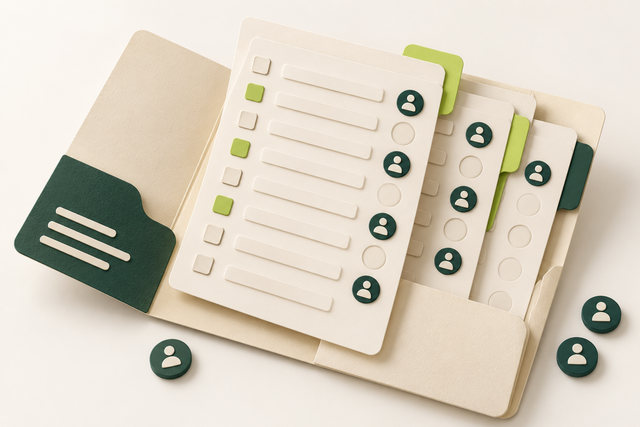
Reusable checklist sheets with task rows, owner tokens and colored tabs in an open folder.
An editorial illustration

Download your templates

Choose a format and save a copy. No account or form is required.

Two real seed rows from the download; the editable file includes additional planning columns.
Task IDSEO actionStatus
HOME-SCOPEList your important website pagesUntested
HOME-ACCESSOpen the correct Search Console propertyUntested
Your working checklist

Work through the checklist

Click a square to mark a task as Pass. Click again to undo. Use the result menu for a problem, a blocker or a task that does not apply. You do not need to enter notes.

8 checks

Choose Your SEO Checklist Format

Choose a format for the way you will use the checklist. The PDF suits a paper review, the workbook supports editable task management, and the CSV transfers rows into another tracker. The underlying SEO tasks are the same.

Choose PDF, Excel or CSV for your workflow

The selected file opens and fits the intended workflow.

Use this for: Everyone using these downloads.

Use the downloads above. Choose PDF to print a manual checklist, XLSX to edit owners and status choices, or CSV to import the task rows. Keep the original download as a clean master and name your working copy for the website or project. A CSV preserves data, not workbook formatting or dropdown controls.

Example

Illustrative filenames: “Example site SEO launch.xlsx” for an active project and “SEO template master.xlsx” for the untouched original.

  1. Choose the needed file format.
  2. Save an untouched master and a working copy.
  3. Open the working copy and check its task rows.
More help and optional notesMedium · Website owner

Before you begin: A PDF reader or compatible spreadsheet application.

PassThe selected file opens and fits the intended workflow.
FailThe file is unreadable or the chosen format lacks a needed feature.

If it fails: Download the correct format and open it in a compatible reader.

Retest: Open the working copy and check its task rows.

Not applicable: The described feature or activity is outside this review’s stated scope; unavailable access belongs under Blocked.

Optional: the affected page or a useful reminder. Keep confidential data out of shared exports.

No result recorded yet.

Changing this result updates your checkmark and progress immediately. Notes are optional.

Set the website and page scope before assigning work

Rows distinguish page-specific work from sitewide tasks.

Use this for: Projects with more than one page or template.

In the Page or scope column, name the website section or specific page affected by each task. For page-level checks, duplicate the relevant row for each important page and keep its original Task ID. Add a page suffix in your own tracker if you need a unique row identifier. A sitewide sitemap task usually needs one owner, not one duplicate per URL.

Example

A title task can have separate rows for /services/boiler-repair/ and /guides/boiler-maintenance/. The sitemap task covers the website.

  1. List the pages or sections in this review.
  2. Duplicate only page-specific tasks that need separate outcomes.
  3. Keep sitewide work grouped by its actual scope.
More help and optional notesMedium · Website owner

Before you begin: The working template and launch page list.

PassRows distinguish page-specific work from sitewide tasks.
FailRows combine unrelated page outcomes or multiply the same sitewide fix.

If it fails: Split page-specific outcomes and consolidate genuinely shared work.

Retest: Keep sitewide work grouped by its actual scope.

Not applicable: The described feature or activity is outside this review’s stated scope; unavailable access belongs under Blocked.

Optional: the affected page or a useful reminder. Keep confidential data out of shared exports.

No result recorded yet.

Changing this result updates your checkmark and progress immediately. Notes are optional.

Customize Priorities, Owners and Statuses

The template is a starting point, not a demand to do every task immediately. Prioritize a real access or usability problem before cosmetic improvements. Assign only work that belongs to this site and make the current state clear.

Choose priorities from actual impact and dependencies

The active tasks have a workable order based on observed needs.

Use this for: Any project with competing tasks.

Review the Priority column against your website. A public service page accidentally set to noindex needs attention before polishing an already descriptive filename. Move a dependent task after its prerequisite, and use a manageable target date. The template’s starting priorities are editorial guidance, not a measured score for your site.

Example

If the site is still password-protected, resolve the planned launch access first; search-performance review cannot confirm visits that do not yet exist.

  1. Identify access, functionality and major content problems.
  2. Order dependent work after its prerequisite.
  3. Adjust priorities and dates to available effort.
More help and optional notesMedium · Website owner

Before you begin: The working template and known website issues.

PassThe active tasks have a workable order based on observed needs.
FailCosmetic work hides a known blocker or dependent work is scheduled first.

If it fails: Move blockers and prerequisites ahead of dependent improvements.

Retest: Adjust priorities and dates to available effort.

Not applicable: The described feature or activity is outside this review’s stated scope; unavailable access belongs under Blocked.

Optional: the affected page or a useful reminder. Keep confidential data out of shared exports.

No result recorded yet.

Changing this result updates your checkmark and progress immediately. Notes are optional.

Assign one responsible person to each active task

Active tasks have a responsible person and an understandable change.

Use this for: Tasks shared across people.

Use the Owner column to identify the person who can complete or coordinate the change. Editors may control page copy; developers may control redirects or templates. Agree the intended result before assigning a date. An owner can ask for specialist help without changing the task into a vague “improve SEO” request.

Example

“Editor: replace the generic Services title on the boiler-repair page” gives a clearer assignment than “Marketing: SEO.”

  1. Match each task to the relevant editing access.
  2. Assign a responsible person.
  3. Confirm the specific change and reasonable target date.
More help and optional notesMedium · Website owner

Before you begin: The task list and the people responsible for editing access.

PassActive tasks have a responsible person and an understandable change.
FailNobody owns the task or the assignee cannot arrange the necessary edit.

If it fails: Assign someone who can make or coordinate the change.

Retest: Confirm the specific change and reasonable target date.

Not applicable: The described feature or activity is outside this review’s stated scope; unavailable access belongs under Blocked.

Optional: the affected page or a useful reminder. Keep confidential data out of shared exports.

No result recorded yet.

Changing this result updates your checkmark and progress immediately. Notes are optional.

Use the five results consistently

Results distinguish unfinished, failed, blocked and irrelevant work.

Use this for: Every template result.

Change Status after checking the described result. Use Untested before review, Pass when it meets the condition, Fail when a checked problem remains, Blocked when access or another dependency stops the check, and Not applicable when it genuinely does not fit. Optional notes can stay blank. A tick is your judgment, not an automated SEO certificate.

Example

A page without images can make an image task Not applicable. An image task that has not been inspected remains Untested.

  1. Read the task’s expected result.
  2. Choose the state matching what you actually checked.
  3. Add a reminder only when useful.
More help and optional notesMedium · Website owner

Before you begin: The selected task and its expected result.

PassResults distinguish unfinished, failed, blocked and irrelevant work.
FailUntested work is marked Pass or irrelevant tasks distort the review.

If it fails: Correct the status to match the task’s actual state.

Retest: Add a reminder only when useful.

Not applicable: The described feature or activity is outside this review’s stated scope; unavailable access belongs under Blocked.

Optional: the affected page or a useful reminder. Keep confidential data out of shared exports.

No result recorded yet.

Changing this result updates your checkmark and progress immediately. Notes are optional.

Use the Template in Excel, Sheets or Print

Keep each working copy coherent when you filter, import or hand it over. These files are standalone resources. Updates made in a workbook, PDF or imported Sheet do not automatically update the website’s saved results.

Import the workbook into Google Sheets when useful

The imported file retains usable tasks and editable planning fields.

Use this for: People choosing to work in Google Sheets.

In Google Sheets, open a new spreadsheet and choose File, then Import. Upload the XLSX and choose a new spreadsheet or new sheets rather than replacing work you need to keep. Open the imported file and inspect the headers, long instruction cells and status choices. Conversion may handle formatting differently, so verify the result before using it with a team.

Example

An imported checklist can become a shared project copy while the downloaded Excel master remains unchanged. No hosted copy link or account access is supplied by this website.

  1. Upload the XLSX through File → Import.
  2. Choose a safe import destination.
  3. Check the imported rows, formatting and status controls.
More help and optional notesMedium · Website owner

Before you begin: The XLSX download and a Google Sheets account you control.

PassThe imported file retains usable tasks and editable planning fields.
FailImport replaces needed data or changes task meaning or controls unnoticed.

If it fails: Reimport into a new file and correct any conversion differences.

Retest: Check the imported rows, formatting and status controls.

Not applicable: You are using the file in another format instead of Google Sheets.

Optional: the affected page or a useful reminder. Keep confidential data out of shared exports.

No result recorded yet.

Changing this result updates your checkmark and progress immediately. Notes are optional.

Recheck completed work after a relevant change

Affected work is reviewed without erasing unrelated history.

Use this for: An existing working copy after website changes.

Filter the workbook by the affected page, owner or group, keeping whole rows together. Reopen tasks when a redesign, content edit or platform change affects their earlier result. Use Last checked for the observation date and keep a dated copy before a large review. You do not need to reset unrelated work.

Example

Changing the page template may reopen title, heading and mobile checks while leaving an unrelated business-profile task unchanged.

  1. Identify which changes affect earlier results.
  2. Recheck those specific tasks.
  3. Update the result and observation date.
More help and optional notesMedium · Website owner

Before you begin: The working copy and a list of relevant website changes.

PassAffected work is reviewed without erasing unrelated history.
FailOld Pass results are reused after a relevant change without review.

If it fails: Reopen only tasks affected by the change.

Retest: Update the result and observation date.

Not applicable: The described feature or activity is outside this review’s stated scope; unavailable access belongs under Blocked.

Optional: the affected page or a useful reminder. Keep confidential data out of shared exports.

No result recorded yet.

Changing this result updates your checkmark and progress immediately. Notes are optional.

Share a clean copy with only the information needed

The handover explains the work without unnecessary private information.

Use this for: Templates being shared or exported.

Before handing over a workbook or PDF, inspect optional notes and examples. Remove confidential customer details, credentials and unrelated data from the copy you intend to share. Keep instructions and Task IDs with the rows so another person understands what was checked. File sharing and permissions are managed by your own storage system.

Example

A developer needs the affected page and requested redirect behavior, not a customer’s private form submission.

  1. Review the outgoing copy and its notes.
  2. Keep the task context and necessary scope.
  3. Share only with the intended reviewers.
More help and optional notesMedium · Website owner

Before you begin: The outgoing file and its intended recipients.

PassThe handover explains the work without unnecessary private information.
FailThe copy exposes credentials, customer data or unclear task context.

If it fails: Prepare a clean task-focused copy before sharing.

Retest: Share only with the intended reviewers.

Not applicable: The described feature or activity is outside this review’s stated scope; unavailable access belongs under Blocked.

Optional: the affected page or a useful reminder. Keep confidential data out of shared exports.

No result recorded yet.

Changing this result updates your checkmark and progress immediately. Notes are optional.

Reset this checklist?

This removes saved statuses, evidence and result dates for the checks on this page. Other checklists keep their records. Export a CSV first if you need a copy.

A useful result, every time

Check a task. Choose a result.

This is a manual SEO workflow. It helps you decide what to investigate and keep a usable record. It does not crawl your website or verify your answers automatically.

  1. Choose your scope. Pick the relevant task group and representative pages you are authorized to inspect.
  2. Run the stated check. Follow the steps, then choose your result. Click the square for Pass, or use the result menu for another status. You do not need to type anything.
  3. Assign the next action. Fix a problem when you can, or ask the right person for help. Optional notes can remind you what to do next. Check the result again after a fix.

What your progress means

Review progress counts passes and failures against applicable checks. Failed work still counts as reviewed. Blocked and untested checks remain unfinished. This is not an SEO score.

Untested
You have not checked this yet.
Pass
You checked it and it works as described.
Fail
You checked it and found something to fix.
Blocked
You need access, information or someone’s help.
Not applicable
This task does not apply to your website.

Export CSV downloads the checks currently shown and any optional notes. Print expands the instructions for that view. Saved results stay in this browser; there is no account sync.

Apply the workflow

When do you need an SEO audit template instead?

Use the audit template when you need to diagnose an existing site and track findings; use the master template for a known implementation plan.

SEO Checklist PDF and Print View

The PDF contains the 25 master SEO tasks and space for a manual review. Open it in a PDF reader, inspect the page preview and choose a readable print scale. Paper marks do not update the online checklist.

Use the PDF when you want an offline discussion or a simple physical checklist. Choose the workbook if you need filtering, editable owners or several separate page outcomes.

SEO Checklist Excel Template

The Excel workbook contains a Start here sheet, the SEO checklist and a separate illustrative row. The working columns identify the task, its group, where to act and what success looks like, followed by priority, page or scope, owner, status and dates. Notes are optional.

Keep all columns together when sorting so a status cannot become attached to the wrong task. Duplicate the whole row for a new page rather than copying only the task label.

Use the SEO Checklist in Google Sheets

Import the XLSX into a new Google Sheet, then verify its layout and status controls. CSV is an alternative when you only need rows; it does not include the workbook’s presentation or validation rules.

The downloadable files are the resource. This page does not create a Google account, publish a shared Sheet or connect your saved browser progress to a spreadsheet.

What Is Inside the SEO Checklist Template?

The master tasks cover planning and keywords, search access, page titles and content, links and images, mobile experience, launch review and appropriate ongoing checks. Every row starts Untested because the template has not inspected your website.

For an illustrative title change, set Page or scope to the relevant service page, assign the editor, write the planned title in an optional note and mark Pass only after checking the published result. Leaving that note blank never prevents completion.

Choose the Right Checklist for the Work

Use this template when you already know which implementation tasks need doing. Use an audit workbook when you need to diagnose an existing site, group findings by cause and verify whether repairs resolve them.

A clear process, with honest limits.

Follow the steps, choose the result that matches what you found, and check again after changes. Notes are optional. A completed check does not guarantee indexing, traffic or rankings. How the checklists work.